Configure SCIM - Microsoft Entra
This describes how to sync users and groups to Row Zero with Microsoft Entra ID using SCIM (System for Cross-domain Identity Management). Once set up, any users or groups assigned to the application in Entra ID will automatically sync to Row Zero.
Prerequisites
Before starting, ensure you have:
- Administrator access to Microsoft Entra ID.
- A SCIM Secret Token provided by the Row Zero team.
Step 1: Create an Enterprise Application
Log into the Microsoft Entra admin center.
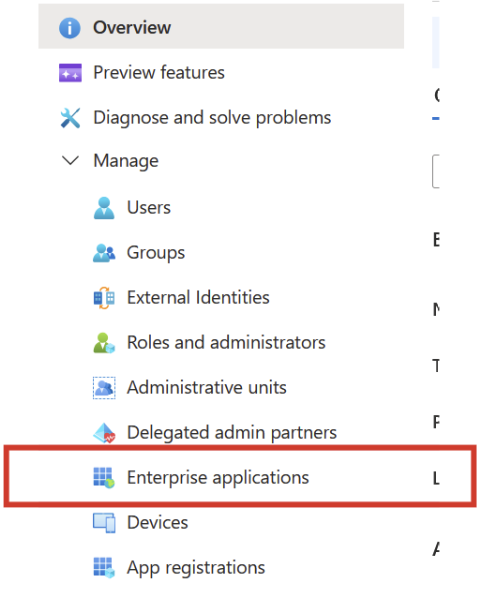
- Navigate to your company’s Microsoft Azure Home and in the left navigation menu of the, select Enterprise applications.
- Click + New application

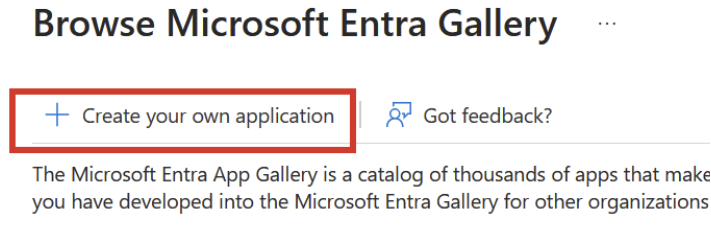
- Choose + Create your own application
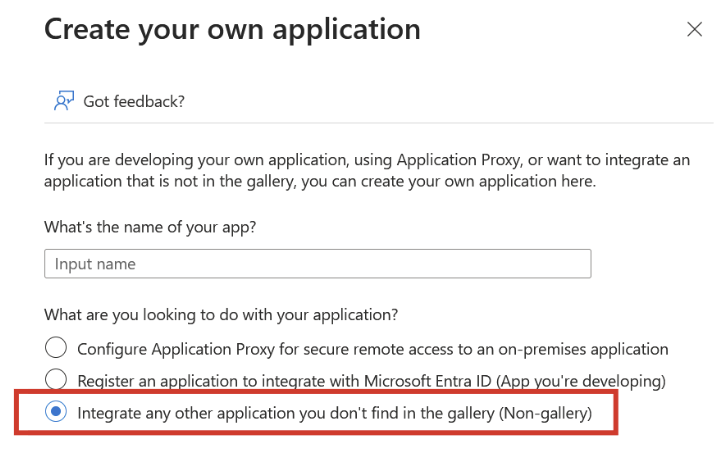
- Enter Row Zero as the application name and select Integrate any other application you don’t find in the gallery (Non-gallery).
- Click Create
Step 2: Assign Users and Groups
You must assign users and/or groups to the application before provisioning will sync them to Row Zero.
- Open the Row Zero enterprise application.
- In the left panel, select Users and groups.
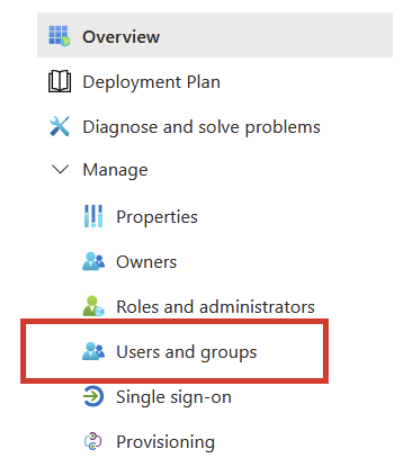
- Under Getting Started, select Assign users and groups.
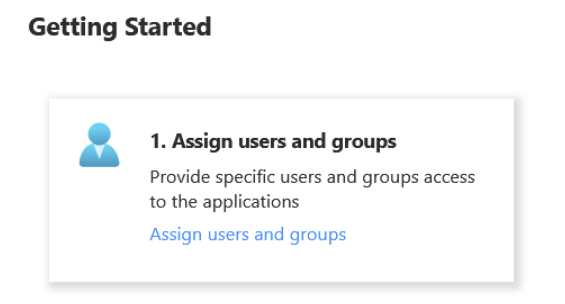
- Click on Add user/group
- Click None Selected to open the selection panel.
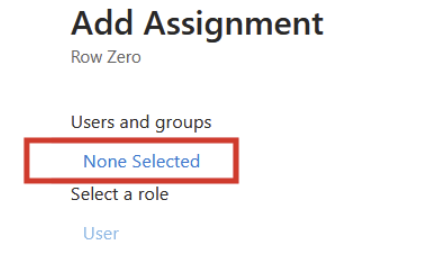
- Choose the users and/or groups you want to provision into Row Zero.
- Click Assign
Step 3: Configure SCIM Provisioning
- In the Row Zero Enterprise application, select Provisioning from the left menu.
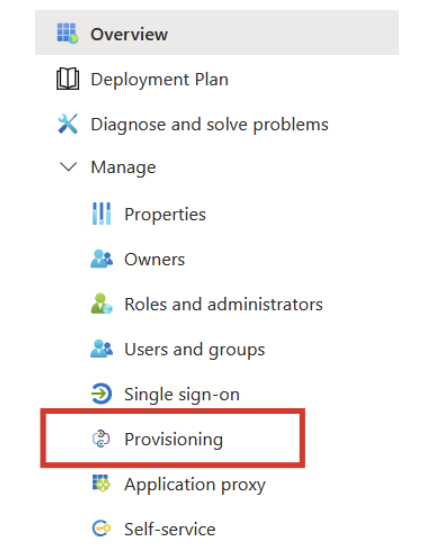
- Click Connect your application.
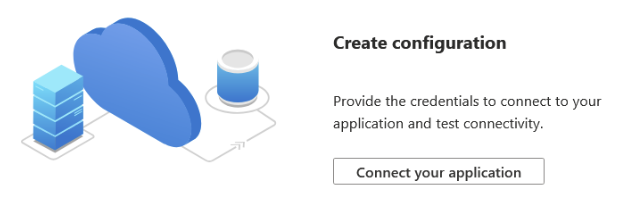
- Enter the following details and click Test connection:
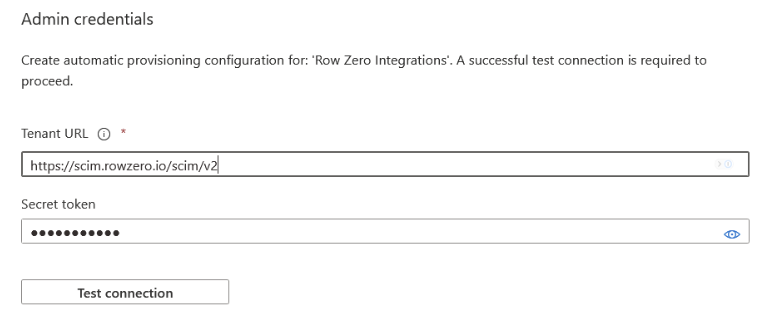 - Tenant URL:
 https://scim.rowzero.com/scim/v2- Secret Token: Enter the token provided by Row Zero. - If successful, you’ll see a confirmation message. - Click Create to save the settings.
Step 4: Start Provisioning
From the Row Zero Enterprise Application, in the Overview tab in the left panel, click Start provisioning.
Once enabled, assigned users and groups will sync into Row Zero automatically on the Microsoft Entra provisioning schedule.
Notes
- Provisioning typically runs every 40 minutes by default.
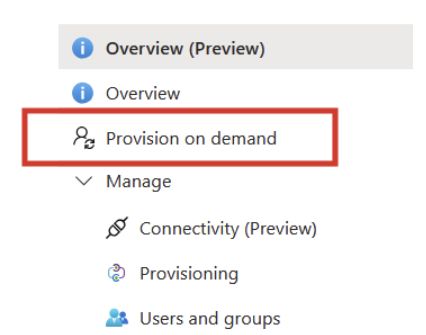
- You can also use Provision on demand in the Provisioning blade to trigger a manual sync.
- For seamless access, ensure the same users/groups are also assigned to your Row Zero SSO application (if SSO is configured). Note that SSO gates access to the Row Zero application for your enterprise while SCIM enables typeahead to easily share / restrict workbooks with your company's defined users and groups.
Frequently Asked Questions
For Microsoft Entra why does SCIM provisioning use an Enterprise Application?
- SCIM provisioning in Microsoft Entra is configured at the Enterprise Application level.
- This is where you connect Row Zero’s SCIM endpoints, provide your SCIM bearer token, and map attributes.
- Users and groups assigned to the Enterprise Application will be automatically synced to Row Zero for the type-ahead feature to share workbooks, users and groups configured via SSO gate the actual access to the Row Zero application.
- Entra does not allow you to configure SCIM provisioning directly on an App Registration (which is required for SSO): Automatic provisioning isn’t available on my OIDC-based application
Why is Row Zero not in the Microsoft Gallery?
- Microsoft maintains a gallery of pre-integrated applications for SSO and provisioning but at this time has paused new submissions: Learn more about the app gallery listing process