Pivot Tables in Row Zero
Pivot tables make it easy to summarize, analyze, and explore large datasets. Row Zero pivot tables are dynamic and automatically update as source data changes. There are two pivot modes:
- Standard - Best for final presentation of data. Supports nesting fields, collapsible groupings, and subtotals.
- Data table - Best for transforming data and creating charts. Supports computed columns, filtering, and sorting.
The documentation below shows how to create and work with pivot tables in Row Zero.
- How to create a pivot table
- Values calculation options
- Group date fields in rows or columns
- Working with Standard pivot tables
- Create pivot table slicers
- Data table mode
How to create a pivot table
You can create pivot tables from both cell ranges and data tables. Here's how:
Select the data you want to create a pivot table from and go to 'Insert' in the header navigation and select 'Pivot table'.
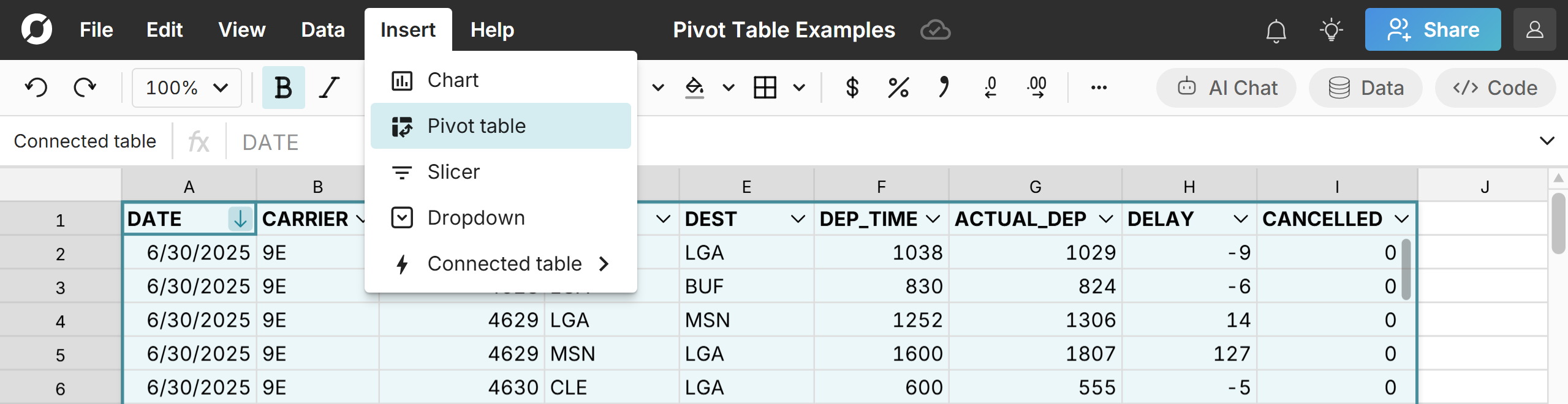 You can also right-click on a cell in a data table or a selected cell range and select 'Pivot'.
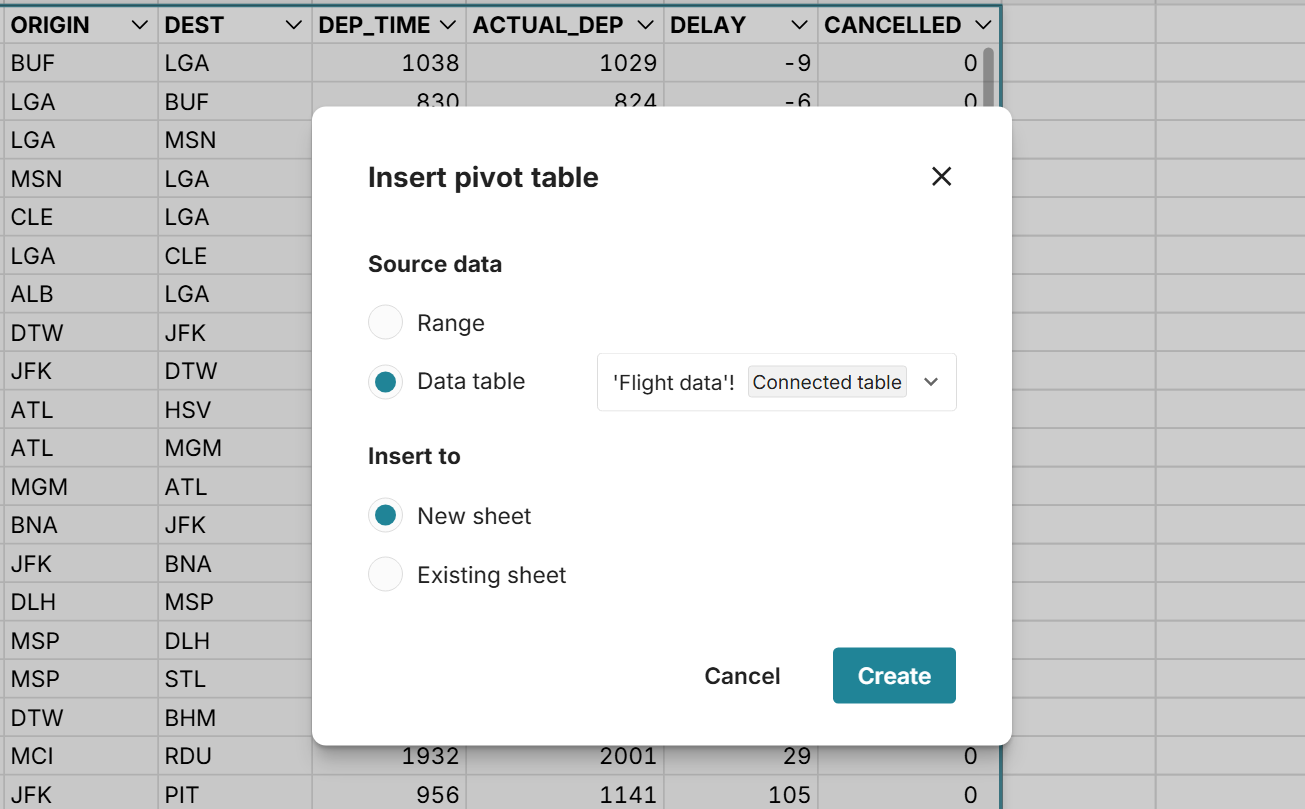
Select your pivot table location. You can insert to a new sheet or a specific cell on an existing sheet.
An empty pivot table will be created.
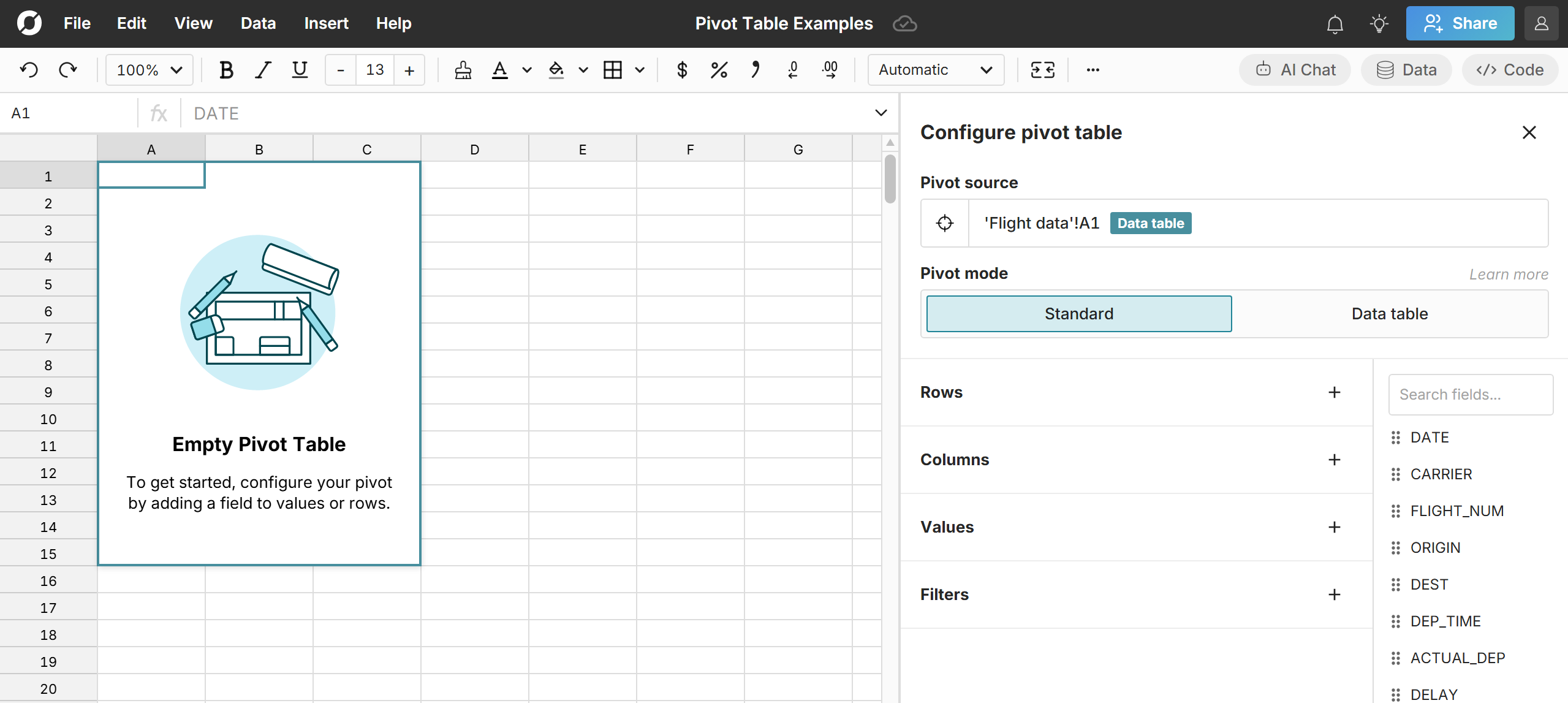 Drag fields to Rows, Columns, Values, and Filters to set up your pivot table. Here's a quick overview:
- Rows and Columns: Think of these as "a row for each" or "a column for each" of whatever you drag to it. Both are optional, but it's more common to use Rows. If you select multiple fields, they’ll be nested in collapsable groupings.
- Values: Drag to Values the things you want the rows and/or columns to be measured on and the type of calculation (i.e. Sum, Average, Count, etc). View all calculation options.
- Filters: Optionally filter the source data used in the pivot table. Pivot table filters support the full suite of filter options.
Here's an example pivot table that summarizes a dataset of 25 million U.S. flights with Rows grouped by Origin and Destination, Columns grouped by year, and Values for Count of flights (by year). Filters are also added to limit to flights in and out of DEN, LAX, ORD, SEA, SFO. 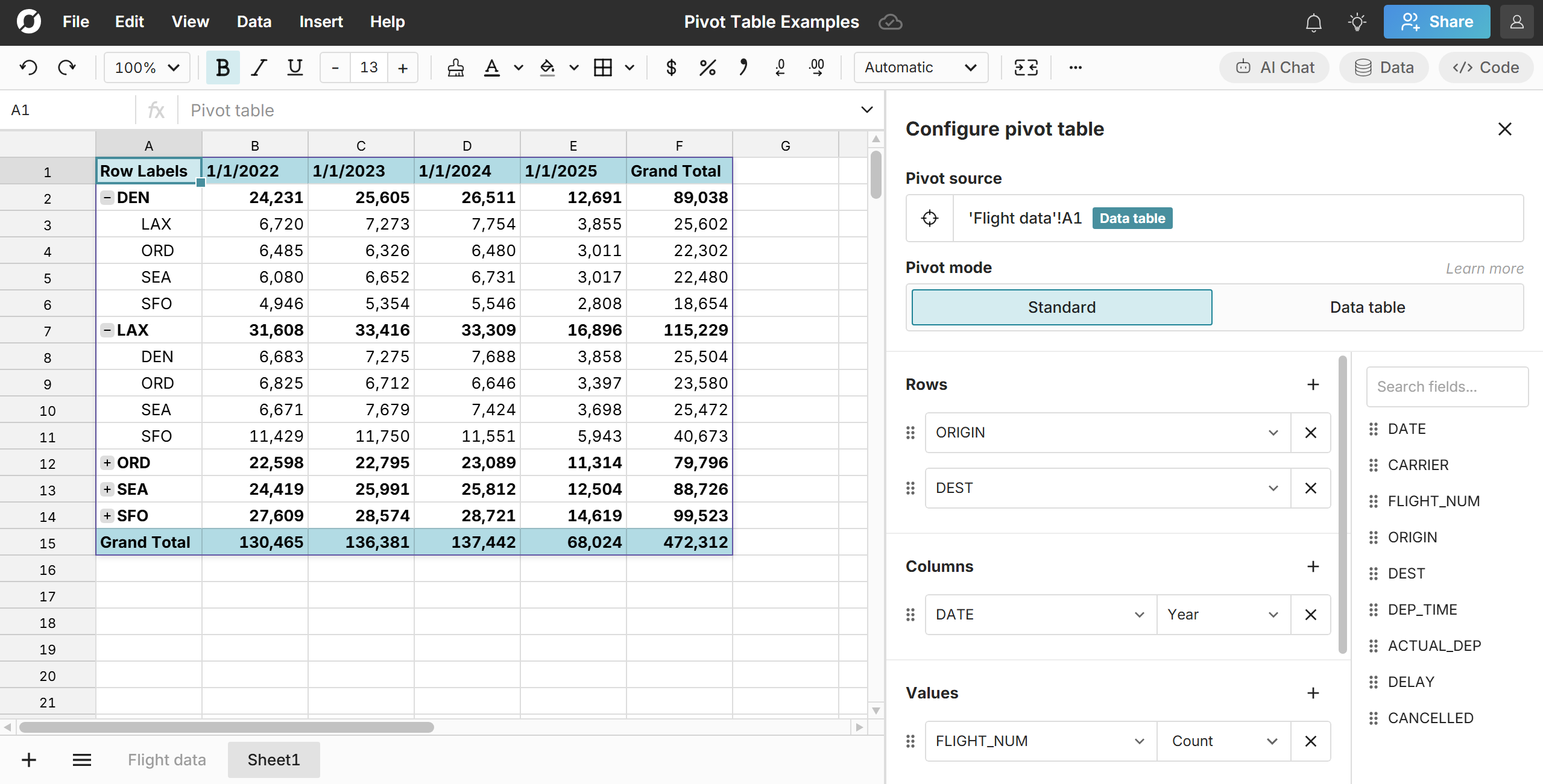
Note, you can also use a keyboard shortcut to insert a pivot table (Alt, N, V on Windows or Option, N, V on Mac).
Value calculations
You can set Values as Columns or Rows. Values have the following built-in calculations:
- Average - Average across values for each row/column grouping
- Count - Counts the number of values for each row/column grouping
- Count unique- Counts the number of unique values for each row/column grouping
- First - First instance of a value for each row/column grouping
- Last - Last instance of a value for each row/column grouping
- Max - Maximum value for each row/column grouping
- Median - Median value for each row/column grouping
- Min - Minimum value for each row/column grouping
- Percentiles - Lets you specify a percentile value to return for each row/column grouping. Percentile options include 10, 25, 50, 75, 90, 95, 99, 99.9.
- Std dev - Standard deviation of values for each row/column grouping
- Sum - Sum of all values for each row/column grouping
- Variance - Variance of values for each row/column grouping
Group date fields in rows or columns
Pivot tables have built-in date grouping. You can group date fields in rows or columns as seconds, minutes, hours, days, weeks, months, quarters, or years. Below, we update the date grouping from year to month in our pivot table above. 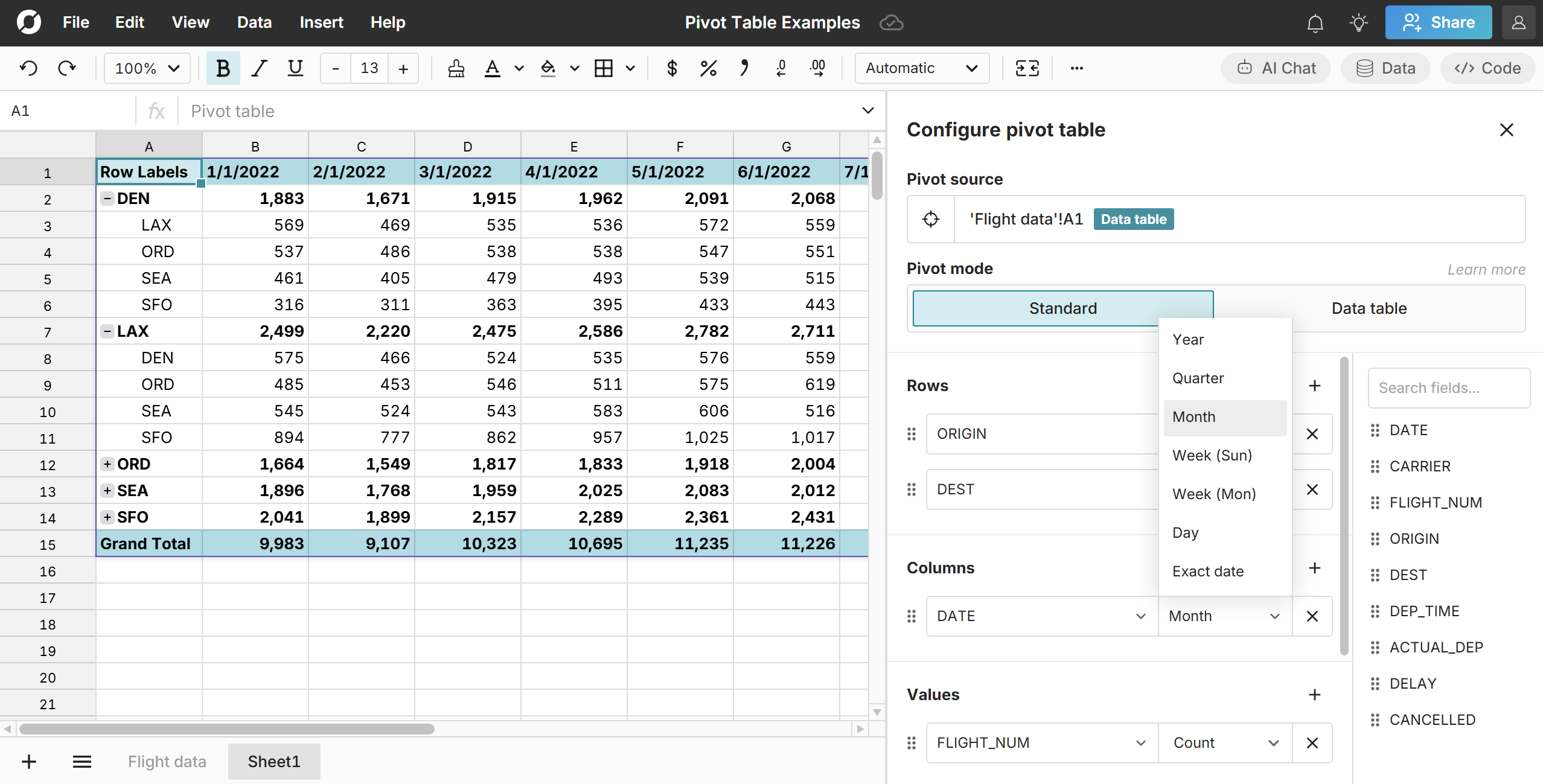
Working with Standard pivot tables
Edit and update pivot tables
Pivot tables dynamically update as source data changes. If you edit source data, add or delete source data, or filter source data, your pivot table updates automatically.
To edit a pivot table, double-click on the top-left cell in the pivot table or right-click on the table and select “Edit pivot table”. Pivot tables dynamically change as you make edits.
Reference pivot table data in formulas
Standard pivot tables support cell references, so you can easily reference any cell in a pivot table in downstream formulas. 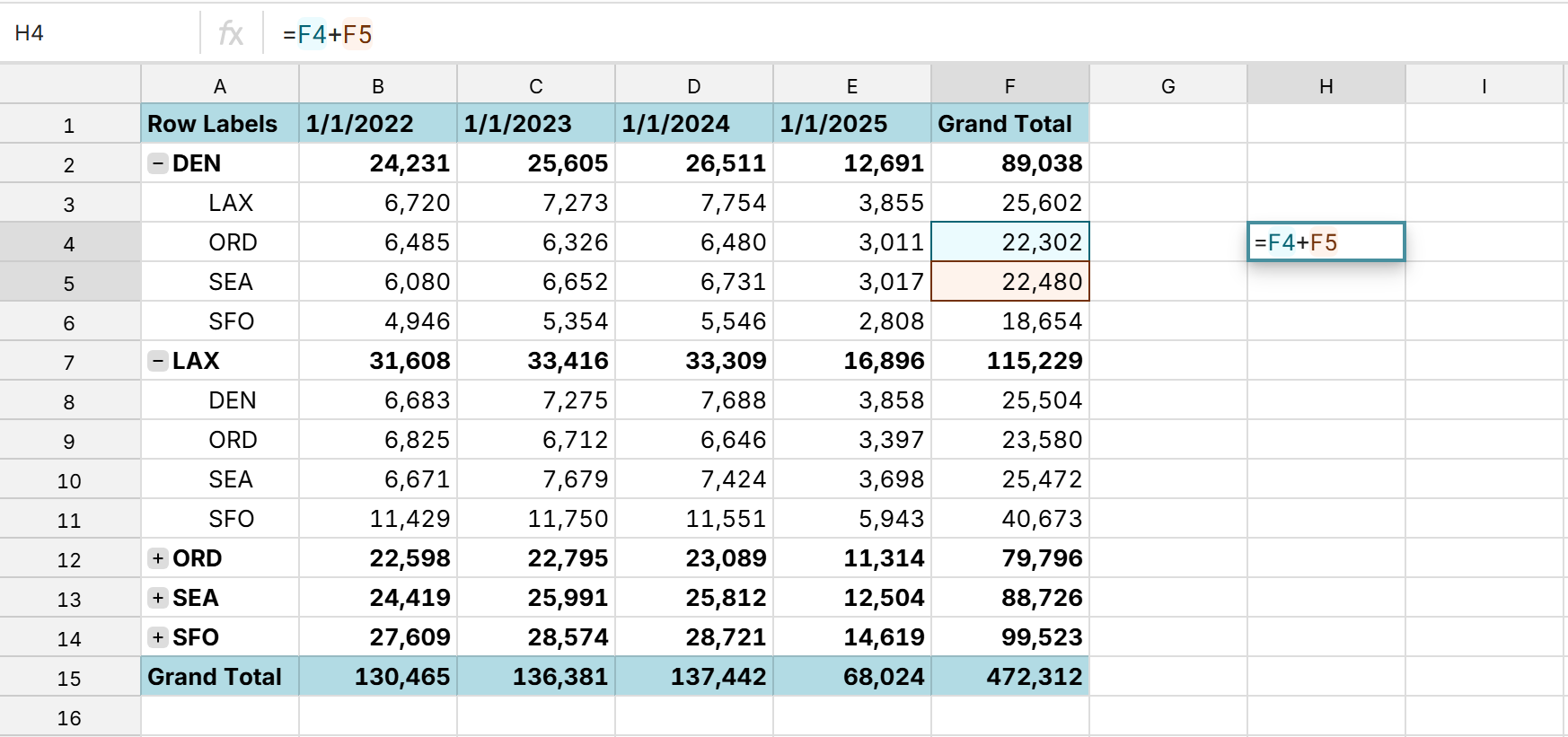
Format pivot tables
Standard pivot tables allow you to format specific cells in the table. 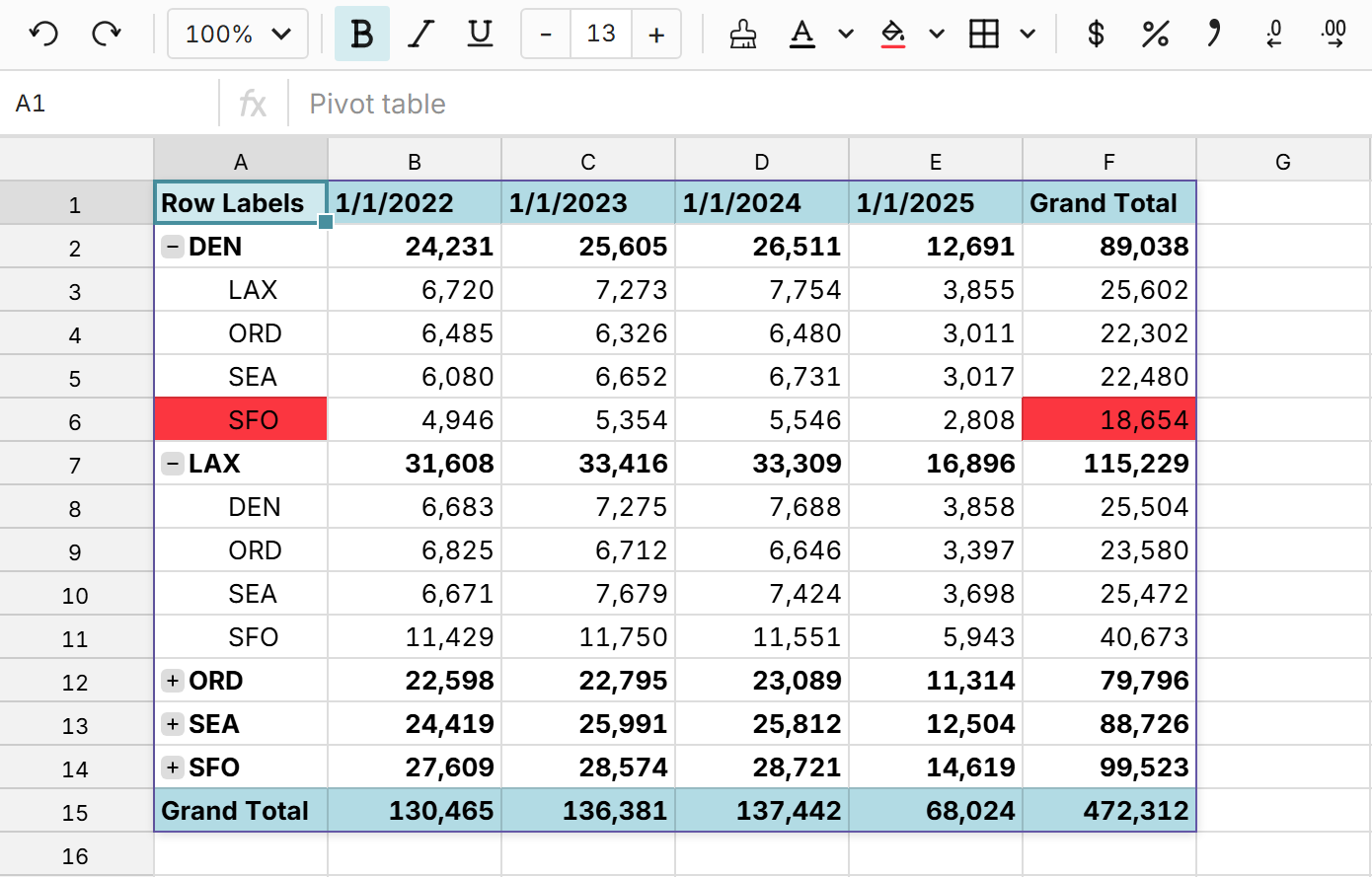
Move, copy, and delete pivot tables
You can drag pivot tables around a sheet or cut/copy and paste to another sheet. To cut/copy a pivot table, right-click on the top-left cell in a pivot table and select 'Cut' or 'Copy' and then use 'Ctrl + V' to paste. To delete a pivot table, click in the top-left cell of the pivot table and use your delete key.
Create pivot table slicers
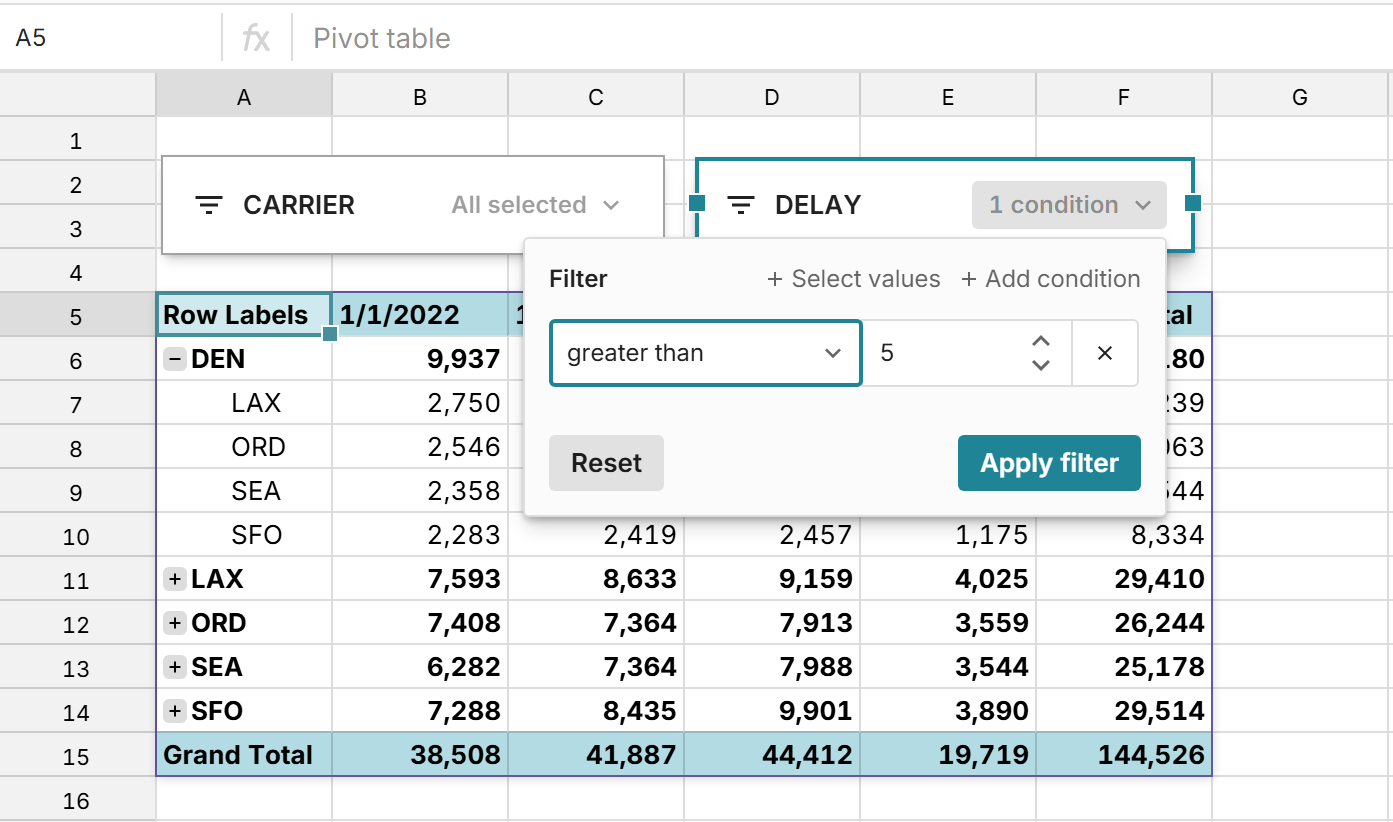
Slicers are filters that can be moved anywhere in the workbook. Slicers filter the underlying source data, which dynamically filters everything that references the source data, including pivot tables. Here's how to create pivot table slicers:
- Click a cell in your pivot table's source data and go to 'Insert' in the header navigation and select 'Slicer'. Select the columns you'd like to create a slicer for and click 'Apply'.
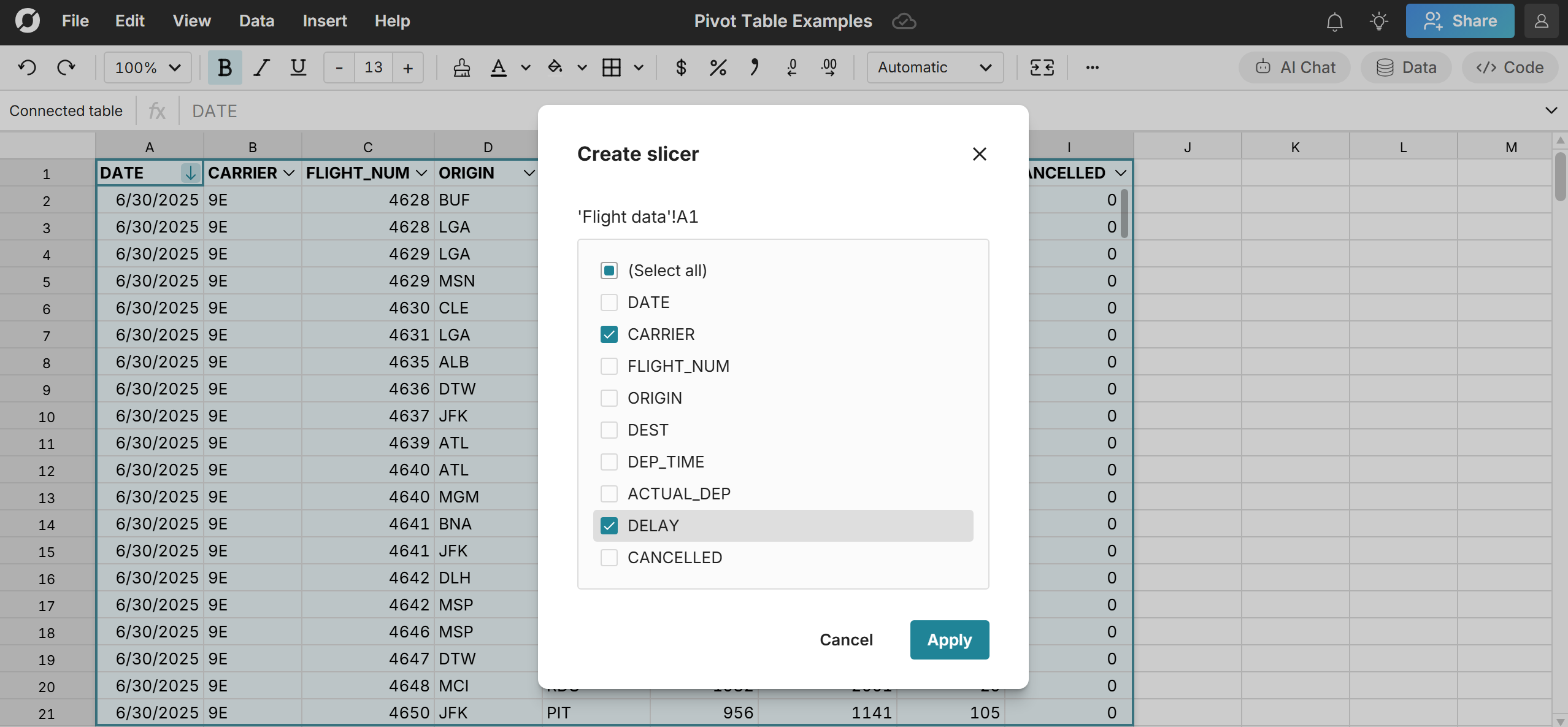
- A slicer is created for each column selected, which you can move or cut/paste around your workbook. Click the slicer dropdown to open the filter. You can select from the list of values, search for a value, or filter by one or more conditions (e.g. >=5). Click 'Apply' and the source data will filter accordingly. The pivot table dynamically updates to reflect the filters applied to the source data. Learn more about slicers here.
Data table mode
You can switch to Data table mode by selecting “Data table” as your Pivot mode. 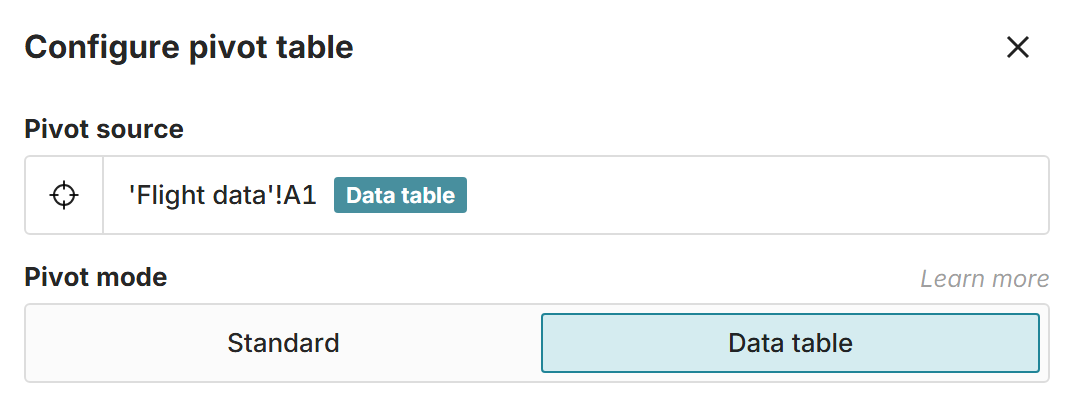 Data table mode offers advanced features for transforming data. You easily filter, sort, chart, and add calculated columns to the pivot table. Note that Data table mode does not support nested groupings, subtotals, or cell references. You’ll need to switch to Standard mode for those features.
Filter and sort pivot tables
Pivot tables in Data table mode have built-in filtering and sorting. Click the down arrow in a column header to sort or filter your pivot table. 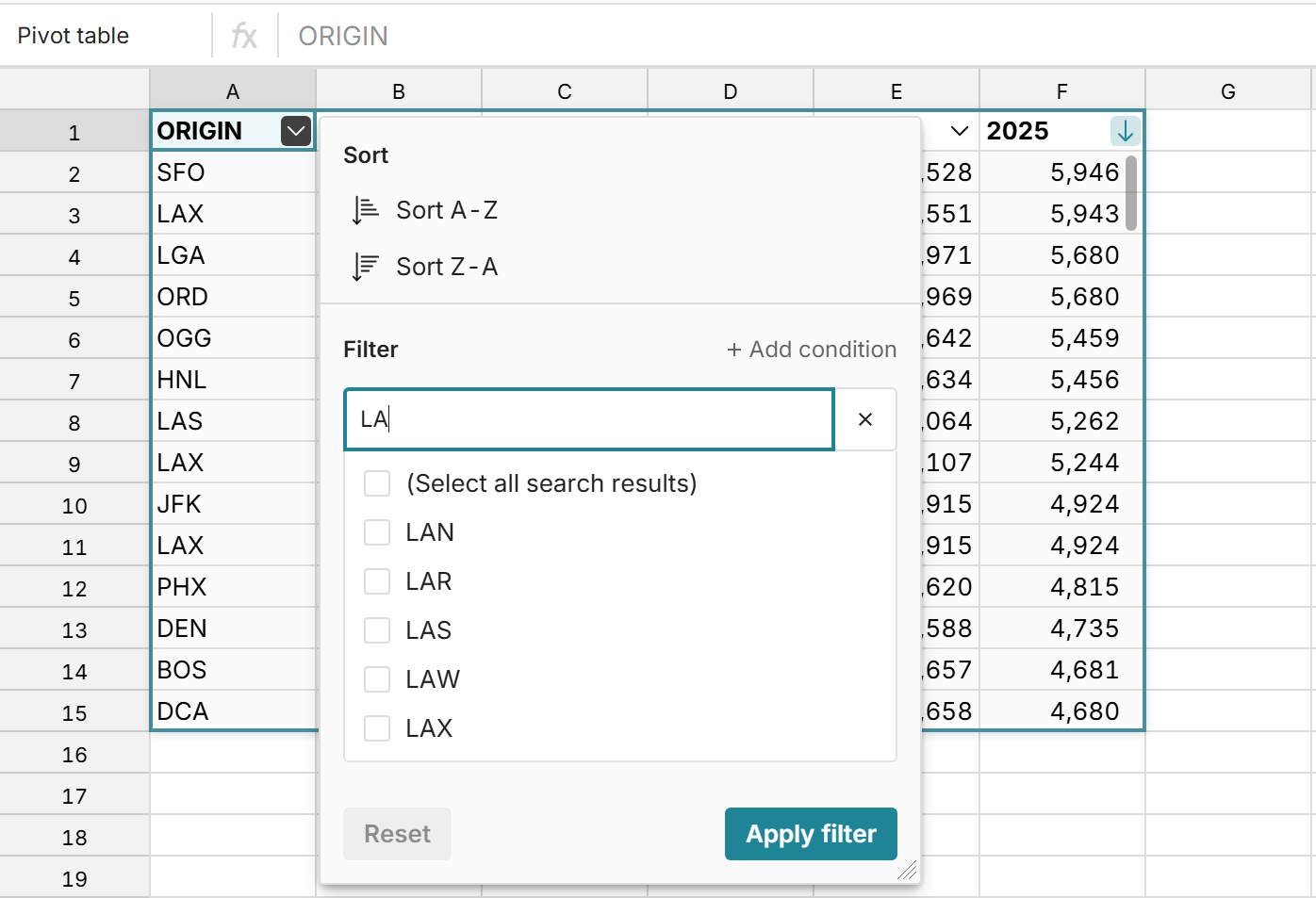
Create charts from pivot tables
To create a chart from a pivot table in Data table mode, select a cell in each pivot table column to include in your chart and go to 'Insert', 'Chart' in the header navigation. Charts built from pivot tables update dynamically in sync with the pivot table, as the pivot table changes or is updated with new data. Read more about chart options here. 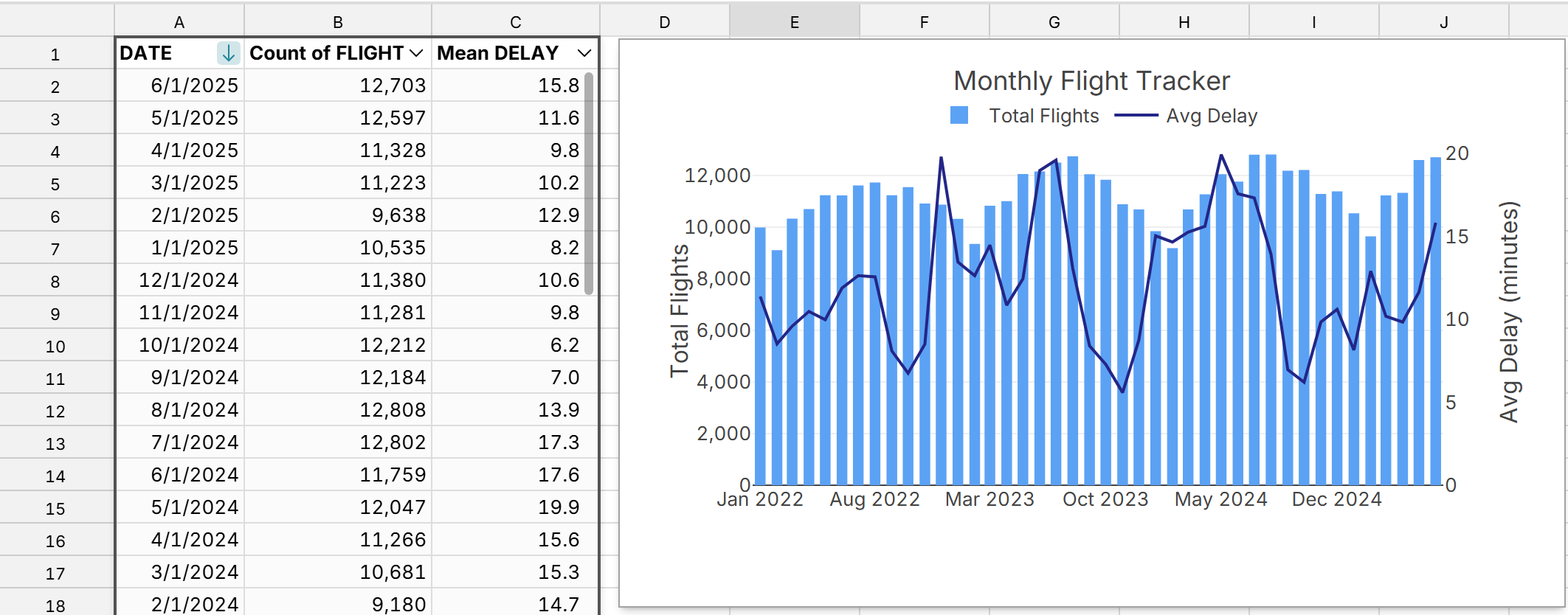
Add calculated columns to pivot tables
To add a calculated column to your pivot table, write a formula in the first column to the right of the pivot table and reference a pivot table column in the formula. The formula dynamically fills in every row in the column with the formula applied. 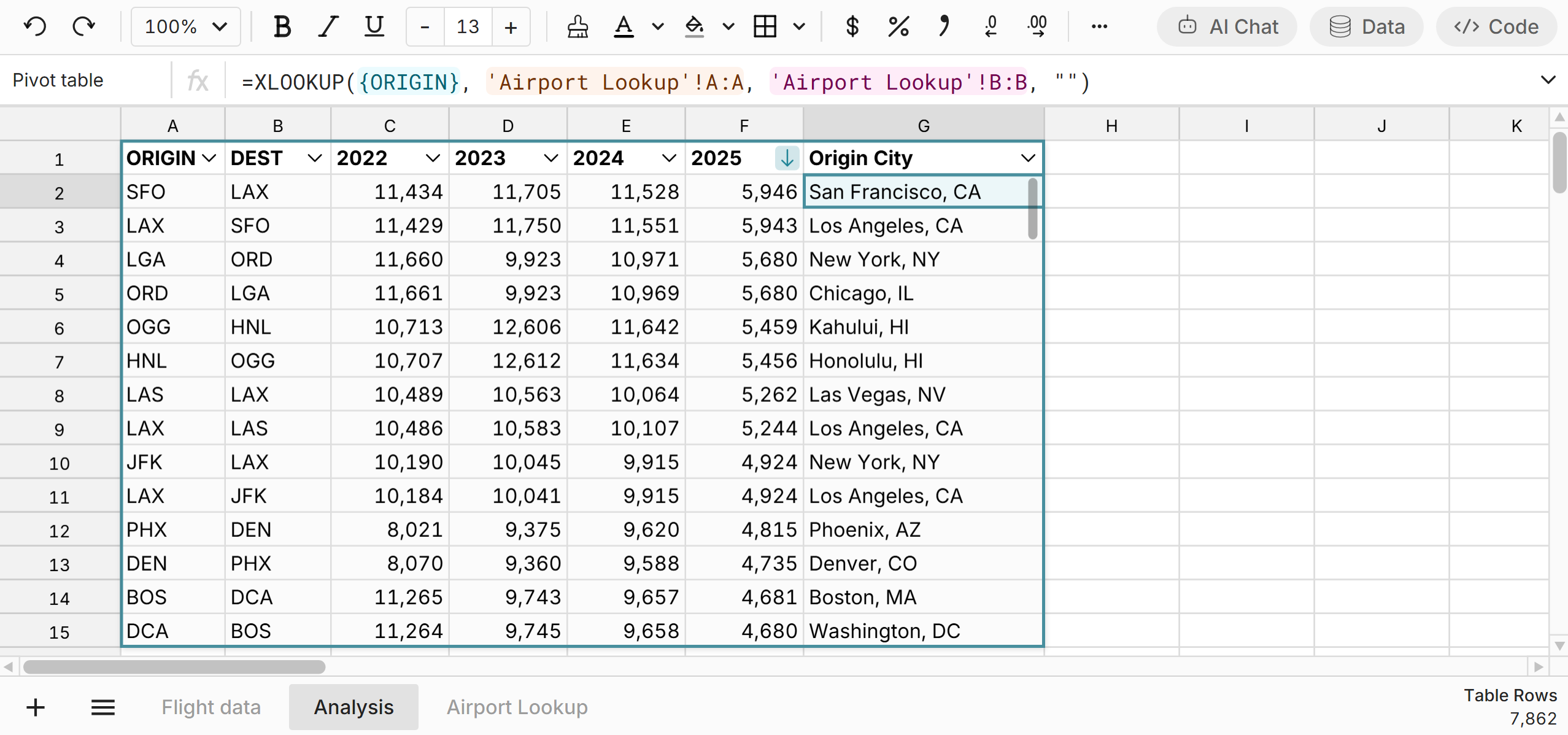
Referencing and formatting in data table mode
In Data table mode, you can reference pivot table columns in formulas using the cell location of the top-left corner of the pivot table and the column name. In the example below, the pivot table starts in cell A1 and has a column named "2024". To use this in a formula, use A1["2024"], which you can see in the example below. 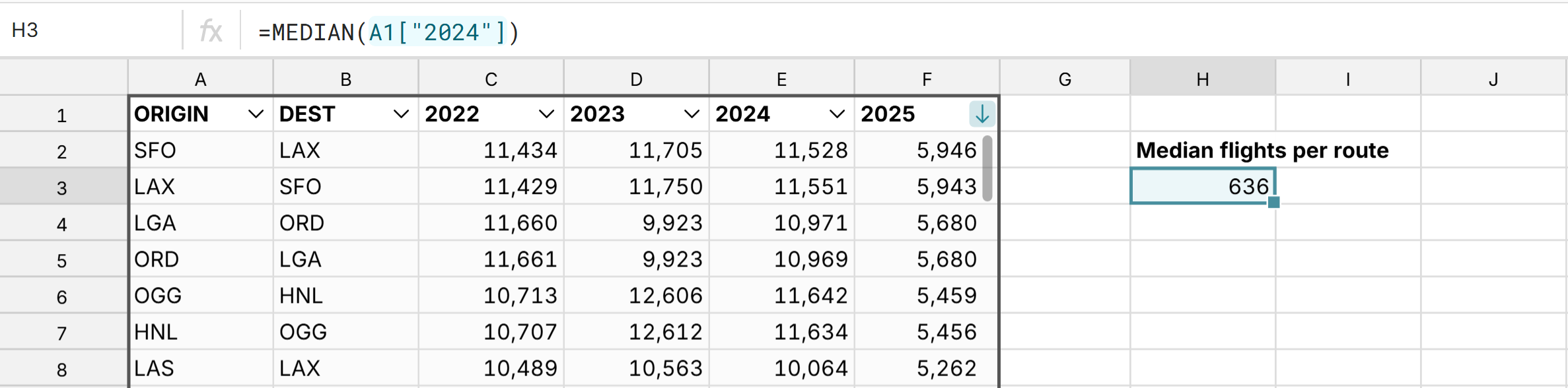
You can also apply any formatting to your pivot table but formatting is applied to the entire column when in Data table mode. 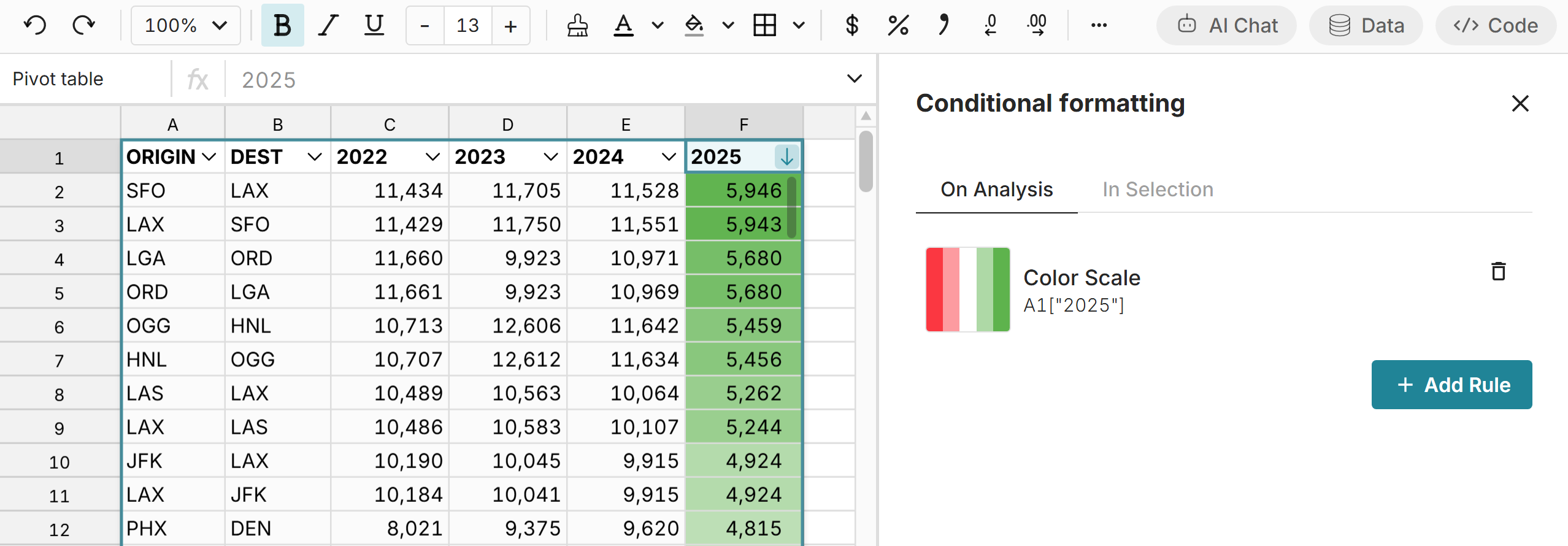 To hide pivot table columns in Data table mode, right-click on the pivot table and select 'Manage columns' and unselect whatever columns you'd like to hide.