There are several spreadsheet functions for rounding numbers and each serves a different purpose. Unlike formatting, rounding functions actually modify your data and impact downstream calculations, so it is important to choose the correct rounding function for your use case.
In this spotlight, we’ll walk through the most useful rounding functions, when to use each one, and share live examples in Row Zero, a spreadsheet for modern cloud data.
- Choosing the right rounding function
- Examples of rounding functions
- Why rounding matters
- Rounding vs formatting
Choosing the right rounding function
Rounding functions give you better control over how values round, but each operates differently. Here’s a quick breakdown of rounding functions depending on your needs. Click on any function to see how it works.
Most useful rounding functions:
These 4 functions are generally the most useful rounding functions and cover most use cases.
- General rounding: ROUND
- Standard rounding to nearest multiple: MROUND
- Always round up: CEILING.PRECISE
- Always round down: FLOOR.PRECISE
Sometimes useful functions:
These functions are either used for edge cases like negative numbers or are a bit more limited compared to the functions above:
- Control negative number rounding behavior: CEILING.MATH, FLOOR.MATH
- Directional decimal rounding: ROUNDUP or ROUNDDOWN
- Round using ISO rules: ISO.CEILING
- Display only: FIXED, TEXT
Generally avoid using CEILING and FLOOR. They are outdated functions that have been replaced by CEILING.PRECISE and FLOOR.PRECISE, which are clearer, safer, and easier to maintain.
Examples of rounding functions
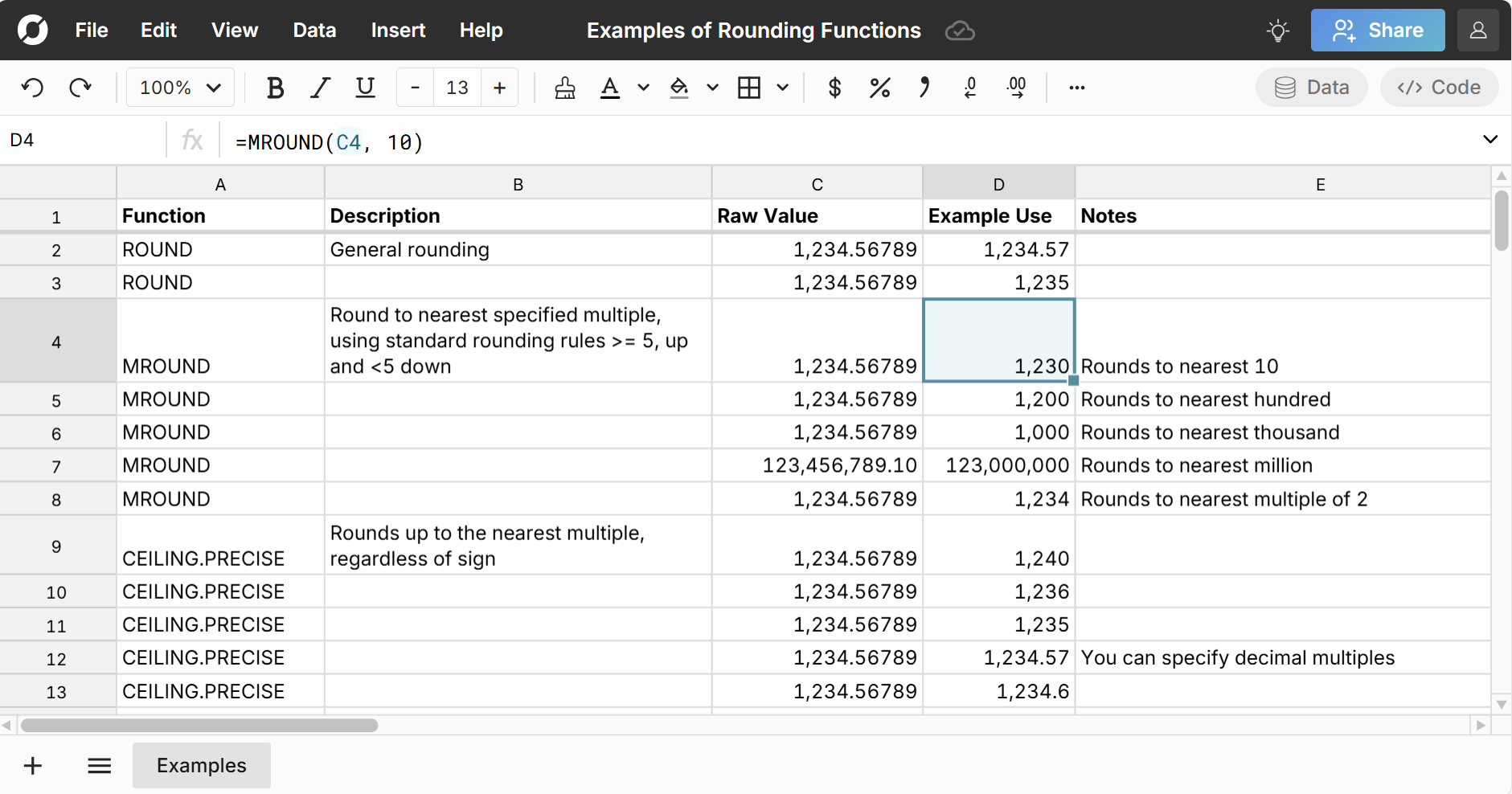
View live examples of the rounding functions below in a spreadsheet.
ROUND function
The ROUND function rounds a number to a specified number of digits and is the default, go-to rounding function. It rounds normally, so digits ≥5 round up and digits <5 round down.
The ROUND function uses the following syntax:=ROUND(number, num_digits)
Example ROUND formulas:=ROUND(1234.56789, 2)
Result: 1234.57
=ROUND(1234.56789, 0)
Result: 1235
Use ROUND for general rounding, financial reporting, and cleaning up calculated values.
MROUND function
The MROUND function rounds a number to its nearest specified multiple and rounds normally, so digits ≥5 round up and digits <5 round down.
The MROUND function uses the following syntax:=MROUND(number, multiple)
Example MROUND formulas:=MROUND(1234.56789, 10)
Result: 1230 (rounds to nearest 10)
=MROUND(1234.56789, 100)
Result: 1200 (rounds to nearest hundred)
=MROUND(1234.56789, 1000)
Result: 1000 (rounds to nearest thousand)
=MROUND(123456789.10, 1000000)
Result: 123,000,000 (rounds to nearest million)
=MROUND(1234.56789, 2)
Result: 1234 (rounds to nearest multiple of 2)
MROUND is an easy way to round numbers to the nearest ten, hundred, thousand, million, etc. However, keep in mind that rounding functions change values, so formatting may be a better option than rounding in many cases.
CEILING.PRECISE function
The CEILING.PRECISE function rounds a number up to the nearest multiple of significance, regardless of sign.
The CEILING.PRECISE function uses the following syntax:=CEILING.PRECISE(number, [significance])
[significance] is the multiple to round up to. It defaults to 1 (it is an optional argument) and sign is ignored.
Example CEILING.PRECISE formulas:=CEILING.PRECISE(1234.56789, 10)
Result: 1240
=CEILING.PRECISE(1234.56789, 2)
Result: 1236
=CEILING.PRECISE(1234.56789)
Result: 1235
=CEILING.PRECISE(1234.56789, 0.01)
Result: 1234.57
=CEILING.PRECISE(1234.56789, 0.1)
Result: 1234.6
=CEILING.PRECISE(-1234.56789, 10)
Result: -1230
Use CEILING.PRECISE for general-purpose rounding up and things like minimum thresholds, pricing rules, and safety buffers.
FLOOR.PRECISE function
The FLOOR.PRECISE function rounds a number down to the nearest multiple of significance, regardless of sign.
The FLOOR.PRECISE function uses the following syntax:=FLOOR.PRECISE(number, [significance])
[significance] is the multiple to round down to. It defaults to 1 (it is an optional argument) and sign is ignored.
Example FLOOR.PRECISE formulas:=FLOOR.PRECISE(1234.56789, 10)
Result: 1230
=FLOOR.PRECISE(1234.56789, 2)
Result: 1234
=FLOOR.PRECISE(1234.56789)
Result: 1234
=FLOOR.PRECISE(1234.56789, 0.01)
Result: 1234.56
=FLOOR.PRECISE(1234.56789, 0.1)
Result: 1234.5
=FLOOR.PRECISE(-1234.56789, 10)
Result: -1240
Use FLOOR.PRECISE for general-purpose rounding down and when precise rounding down rules matter for things like financial models and scientific analysis.
CEILING.MATH and FLOOR.MATH functions
The CEILING.MATH function and FLOOR.MATH function work similar to their .PRECISE siblings but have an extra [mode] argument that gives greater control over how to round negative numbers, either toward or away from zero.
The CEILING.MATH function uses the following syntax:=CEILING.MATH(number, [significance], [mode])
[significance] is the multiple to round up to. It defaults to 1 (it is an optional argument). [mode] controls the direction negatives round to. Default is negatives round towards zero. If mode is a non-zero value, it rounds away from zero.
Example CEILING.MATH formulas:=CEILING.MATH(-1234.56789, 10)
Result: -1230
=CEILING.MATH(-1234.56789, 10, 1)
Result: -1240
The FLOOR.MATH function uses the following syntax:=FLOOR.MATH(number, [significance], [mode])
[significance] is the multiple to round down to. It defaults to 1 (it is an optional argument). [mode] controls the direction negatives round to. Default is negatives round away from zero. If mode is a non-zero value, it rounds towards zero.
Example FLOOR.MATH formulas:=FLOOR.MATH(-1234.56789, 10)
Result: -1240
=FLOOR.MATH(-1234.56789, 10, 1)
Result: -1230
ROUNDUP function
The ROUNDUP function rounds a number up, away from zero and always rounds up, regardless of the decimal value.
The ROUNDUP function uses the following syntax:=ROUNDUP(number, num_digits)
Example ROUNDUP formula:=ROUNDUP(1234.56789, 2)
Result: 1234.57
=ROUNDUP(1234.56789, 0)
Result: 1235
ROUNDDOWN function
The ROUNDUP function rounds a number up, away from zero and always rounds up, regardless of the decimal value.
The ROUNDUP function uses the following syntax:=ROUNDUP(number, num_digits)
Example ROUNDDOWN formula:=ROUNDDOWN(1234.56789, 2)
Result: 1234.56
=ROUNDDOWN(1234.56789, 0)
Result: 1234
Why rounding matters in modern data workflows
While rounding is often used to make data more presentable and readable, rounding functions typically transform the impacted data and can impact:
- Financial accuracy (billing, revenue recognition)
- Business logic (thresholds, quotas, limits)
- Aggregations and rollups
- Downstream calculations and outputs
In particular, rounding impacts can compound when working with large datasets or automating rounding in recurring spreadsheet workflows. Choosing the right rounding function helps avoid errors and makes your models easier to reason about.
Rounding vs Formatting
One common source of confusion in spreadsheets is the difference between rounding a value and formatting how that value is displayed. While they can look the same on screen, they behave very differently under the hood.
Rounding changes the underlying value. Formatting only changes how the number looks. This is a critical difference if your values will be used in downstream calculations, because you will get different results. For example:
=ROUND(123.4567, 2)
The result is 123.46
If you multiply this times 1000, you get 123,460
If you instead had formatted 123.4567 to 2 decimal places by decreasing precision, the screen would show 123.46. However, if you multiplied this value to 1000, you would get 123,456.70.
These differences compound with more data and more downstream calculations. Rounding vs formatting also impacts exports of the data. So in many instances, formatting is the better choice versus rounding. Row Zero supports many formatting options including advanced formatting which gives greater control over precision and presentation. Access advanced formatting via the Number formatting dropdown: 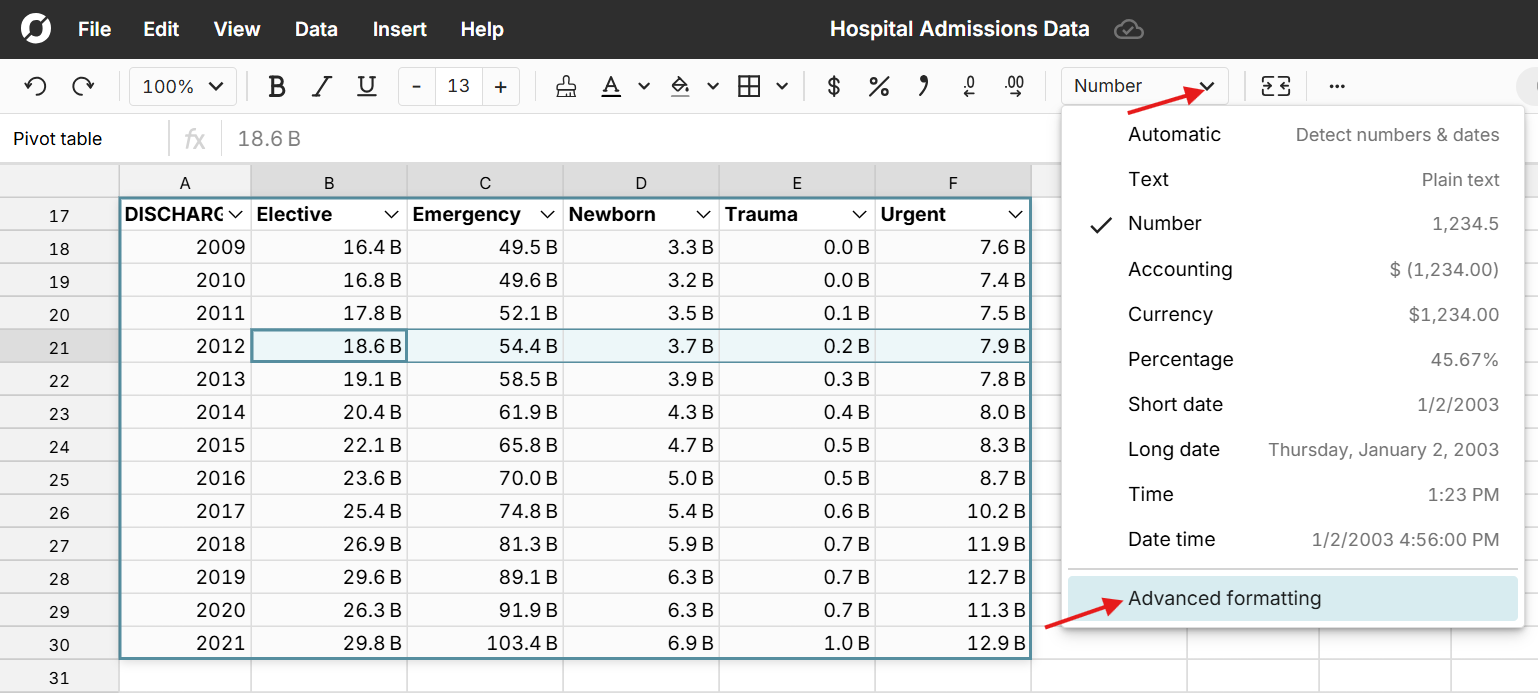
Here you can select your precision and rounding multiple. 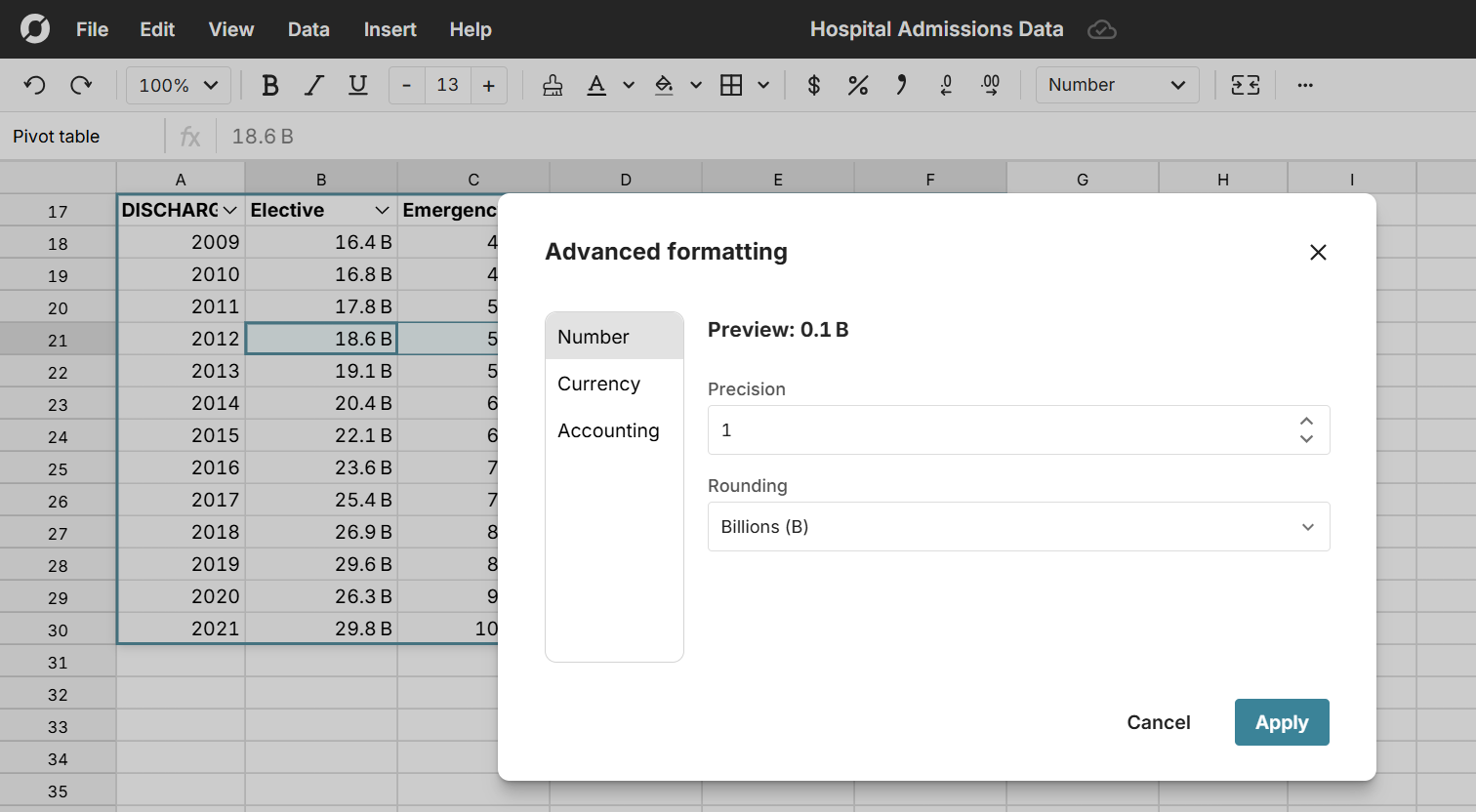
This lets you format numbers to thousands, millions, and billions without using the rounding or TEXT functions.
When to choose formatting vs rounding
In general, you should use formatting when:
- You want cleaner visuals in reports or dashboards
- Precision is still needed behind the scenes
- You’re preparing data for human review, not logic
You should use rounding functions when:
- Rounding matters for downstream calculations
- The rounded value drives business logic
- You’re enforcing things like thresholds, quotas, pricing rules, etc.
As a simple rule, only use rounding functions if you intend to change the values.
Conclusion
Rounding is a small detail that can have a big impact, especially when rounding anything that isn’t a final output. Using the right rounding function keeps your spreadsheets accurate, readable, and aligned with real-world business rules. If you’re building financial models, pricing logic, or operational workflows in spreadsheets, mastering these rounding functions will save you time and prevent costly mistakes. Here's a general rule of thumb for rounding in spreadsheets:
- If you just want cleaner visuals, use formatting instead of rounding functions.
- If you want to actually change the values but are unsure which rounding function to use, start with ROUND.
- If rounding direction matters (e.g. always round up), use CEILING.PRECISE and FLOOR.PRECISE.
- If negatives matter, use CEILING.MATH and FLOOR.MATH.
View rounding examples in a spreadsheet